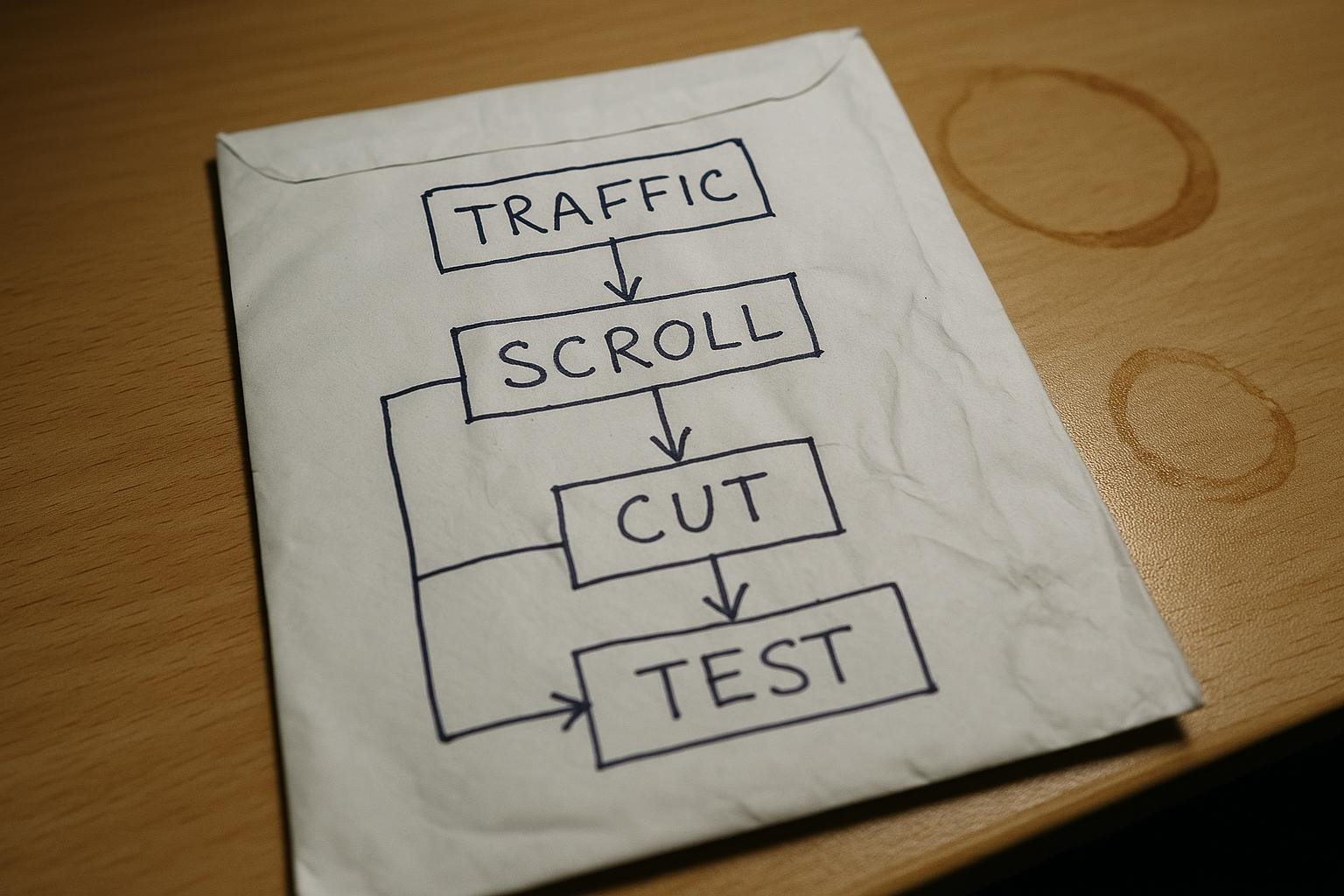
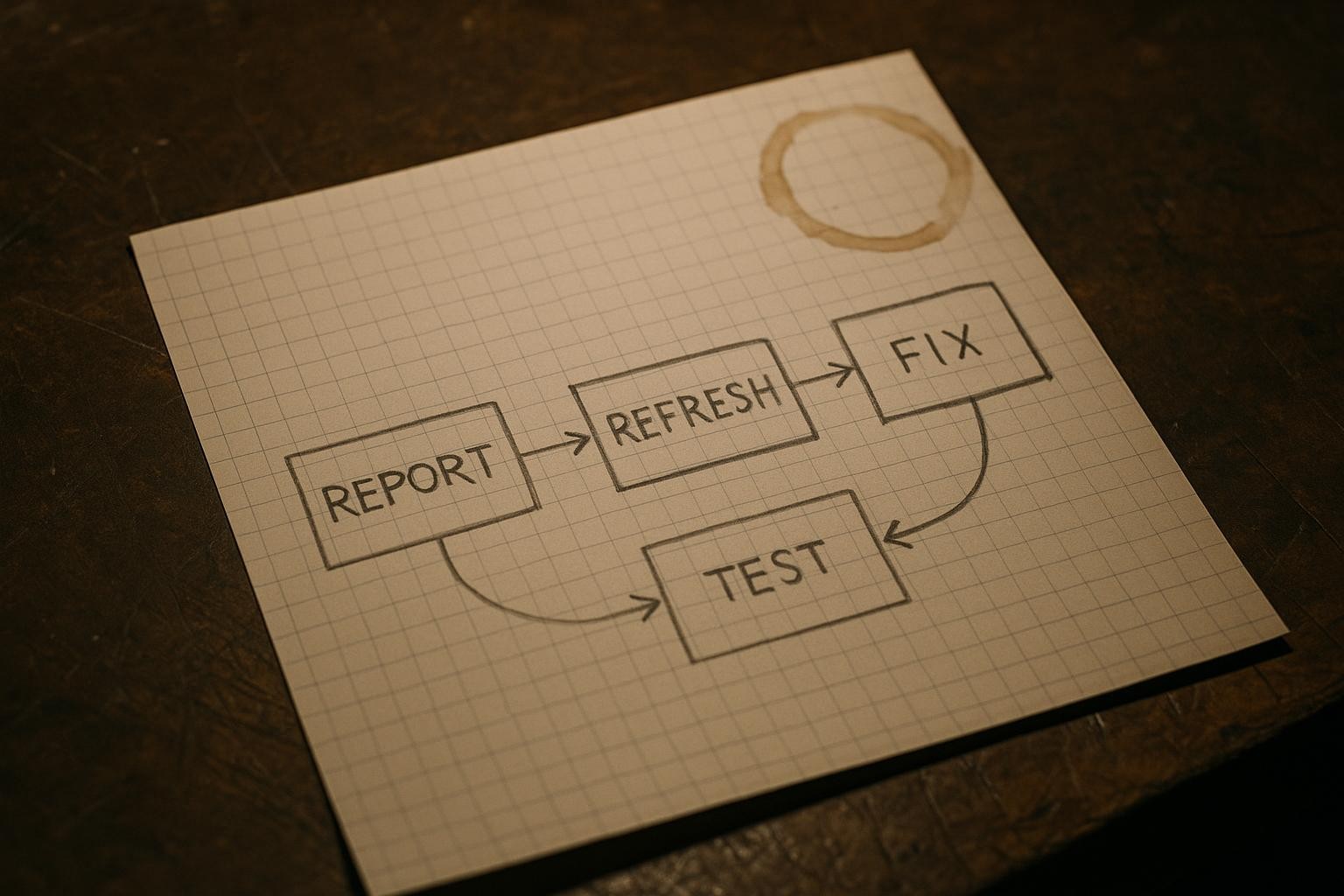
A customer messages you. The booking button isnt working. The banner has disappeared. The form throws an error. Your first instinct is to panic, then call someone. Before you do either - check when they last refreshed their tab.
What actually happened in a real support case
A customer reported a flashing promotional banner that had vanished from a page. It looked like a code problem. It took 90 minutes to diagnose. The real cause: the customer’s browser tab had been open across several separate updates to the site. Their browser was still running yesterday’s version of the page. The server had already moved on.
Nothing in the error message said “your tab is out of date.” It just failed, quietly, the way a real bug would.
Why this happens - in plain terms
Every time a modern website or web app is updated and pushed live, it generates a new version. Think of it like a new edition of a document. Every request the page makes back to the server - loading a booking slot, submitting a form, pulling in live prices - is tied to that specific edition.
If a tab has been sitting open since before the update, it’s still quoting from the old edition. When it calls the server, the server looks back and says, in effect, “I dont know what you’re asking for.” The tab gets a generic error, or silence. The customer gets a broken-looking feature.
This is especially common anywhere a browser tab stays open all day: a reception desk running a booking portal, an admin panel left open overnight, a dashboard a manager checks once in the morning and again at four.
Three ways to handle it when a report comes in
Here are your real options. Two of them cost you nothing.
Option 1 - Ask the customer to hard-refresh first (free, takes 10 seconds)
A hard refresh forces the browser to reload everything from the server, not from its own memory. The shortcut is:
Windows / Linux:  Ctrl + Shift + R
Mac:              Cmd + Shift + R
Mobile (Chrome):  hold the reload button, tap "Hard Reload"
If the feature comes back, you’re done. No developer needed. This should be the first line in any support response you send, every time, before anything else is investigated.
Option 2 - Check what version is actually live before chasing a code theory (free, takes 2 minutes)
Open the page yourself in a fresh private or incognito window. Private windows carry no cached version - they pull cleanly from the server. If the feature works there, the problem is the customer’s stale tab, not your code.
Chrome / Edge:  Ctrl + Shift + N  (Windows)  or  Cmd + Shift + N  (Mac)
Firefox:        Ctrl + Shift + P  (Windows)  or  Cmd + Shift + P  (Mac)
Safari:         File > New Private Window
This is the version check. It takes two minutes and it either closes the ticket or confirms there is a real problem worth digging into.
Option 3 - Escalate to a developer (costs time and money)
If the feature is broken in a fresh private window too, then yes - something in the code or the server needs attention and it’s worth calling someone. But this is the third step, not the first. Jumping here without running options 1 and 2 is the 90-minute mistake.
Work out what this costs you on your own numbers
Think about how often you get a “something’s broken” message from a customer or a member of staff. Even once a month is worth accounting for. If each one pulls you or someone else off a job for an hour - chasing the developer, waiting for a reply, testing, going back and forth - that’s an hour at whatever your time is worth to the business. Multiply by twelve. A chunk of that is probably stale tabs.
The fix for those cases is a 10-second keypress. The cost of not knowing that is the hour.
The one thing to change in how you handle reports
Add a single line to every support template, every staff handover note, every “website acting up?” instruction you have:
Before anything else: close the tab, reopen the page fresh, and try again.
If that fixes it, no further action needed.
Thats it. One sentence. It wont catch every bug - real code problems exist and they need real fixes. But it catches the ones that arent bugs at all, and it stops you paying developer rates to diagnose a browser tab.
When it keeps happening
If stale-tab errors are coming up regularly, it usually means the site is being updated often - which is a good sign - but users aren’t being nudged to refresh. Some web apps can be built to detect when a new version is live and prompt the user automatically: a small banner that says “a new version is available - click to reload.” That’s a build decision, not a quick fix, but it’s worth knowing it exists if the problem keeps eating your time.
If your site or booking system is getting regular updates and you’re not sure whether it’s set up to handle version changes gracefully, we’re happy to take a look and tell you what we see - no commitment on your side. Find out how we work with small businesses here.